A social chat and audio app for mental-health awareness
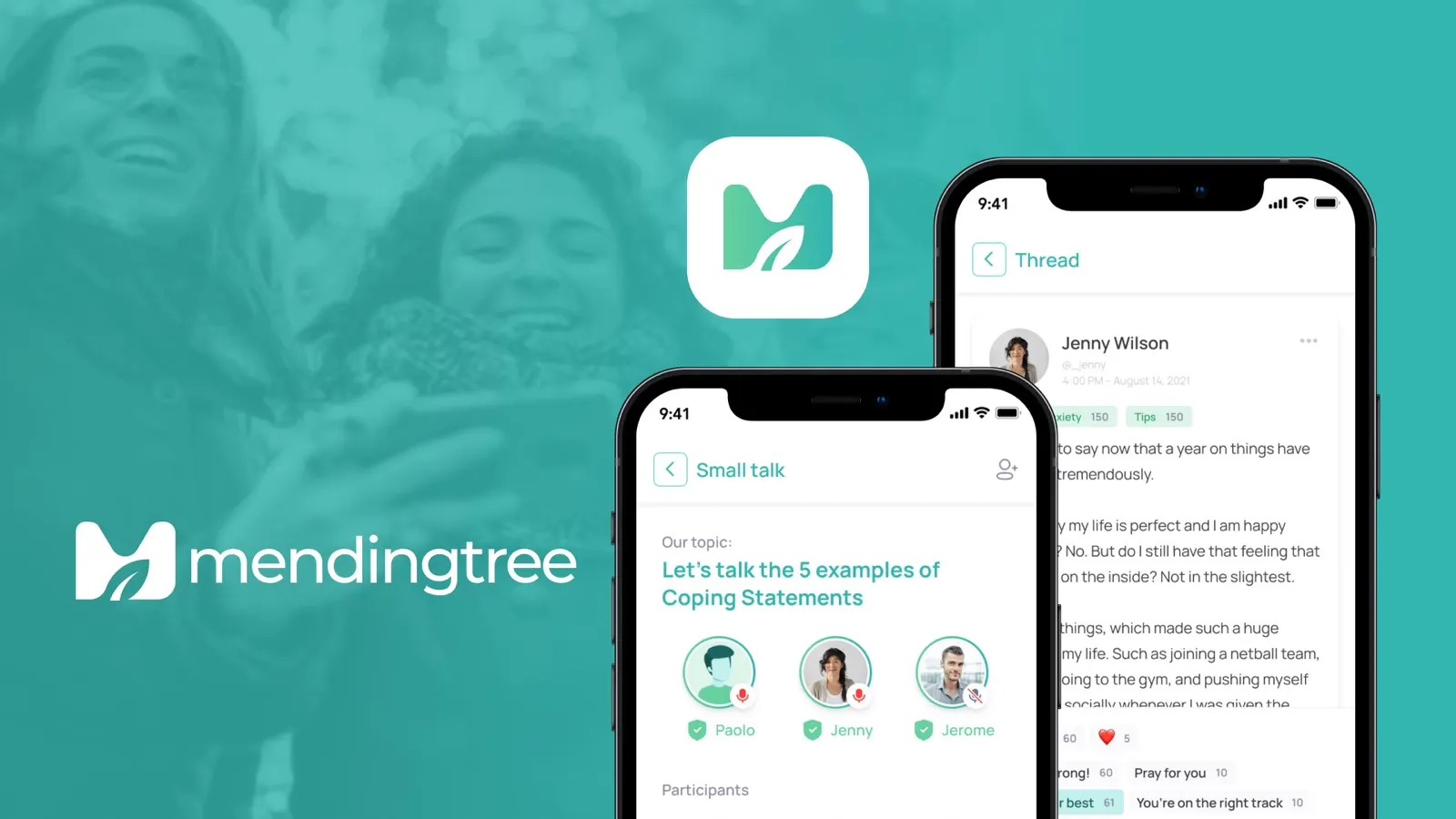
- MendingTree, Paolo Cue
- 2022
- 4 months
- UI design, research, user testing
- Mobile application
💡 Context
MendingTree is a platform for mental health conversations. It is aimed at young women who face mental health challenges and don’t have peers to talk to. The platform gives them a safe, secure place to meet others with similar experiences, and a community without the stigma.
My goal was to design the MVP for an investor presentation: low and high-fidelity sketches, a style guide, interactive prototypes and the complete MVP app design.
💼 My role
I worked as the only designer, with the developer team and the project manager. My responsibilities were:
- Research
- UI design
- User testing
🔍 Research
Because the product is so unusual, I started with competitor analysis. After talking with the CEO, we took a social media direction that mixes Clubhouse and Twitter, because people like sharing their issues with a limited audience on Twitter.
I looked at Headspace, Calm and Talkspace. Two things stood out: Facebook’s “Care” reaction and the way Clubhouse handles interaction. For the MVP we chose emoji reactions over custom reactions, so we could validate the idea quickly.
The CEO was firm about privacy: users’ first and last names must never be shown.
🫂 User personas
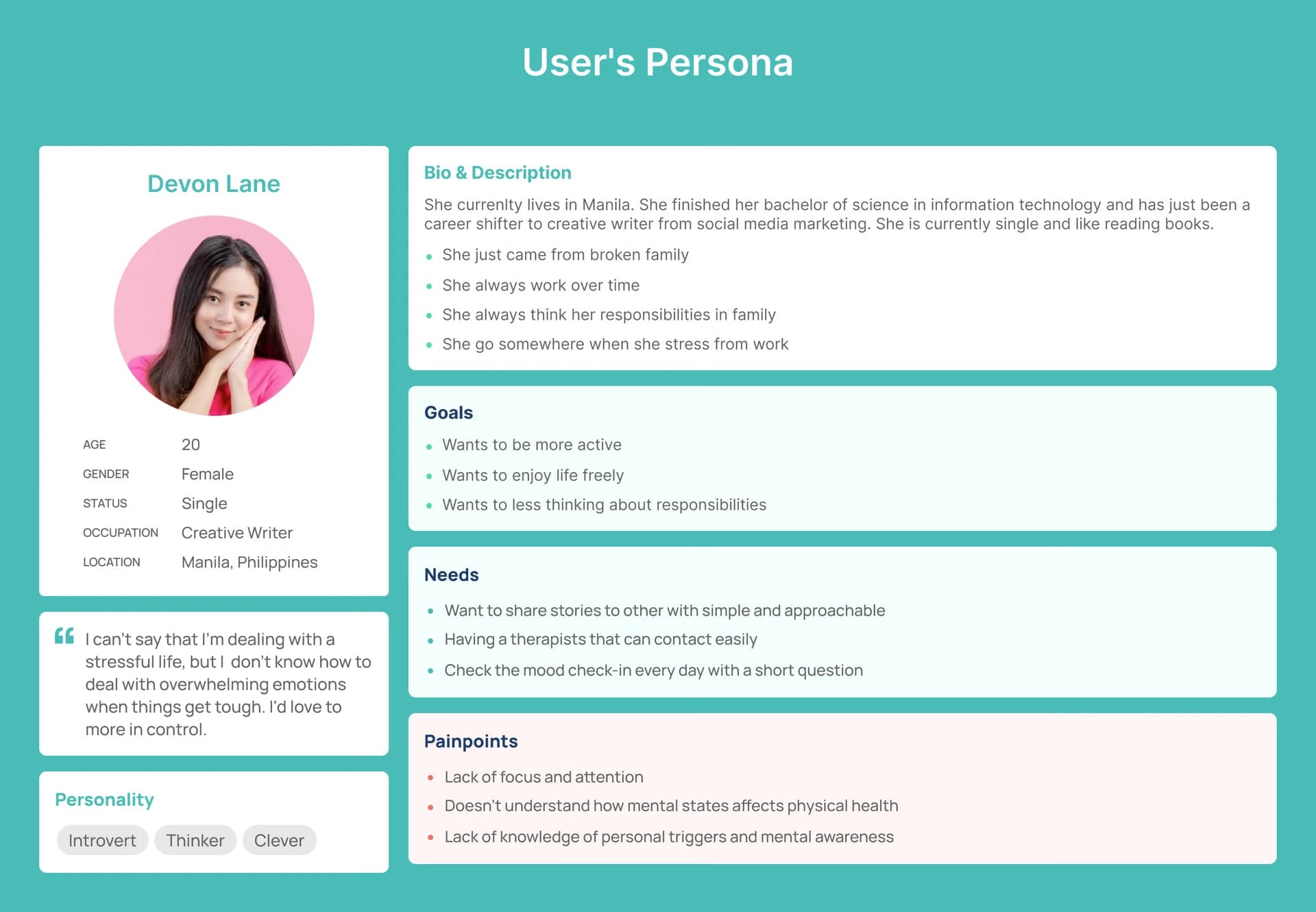
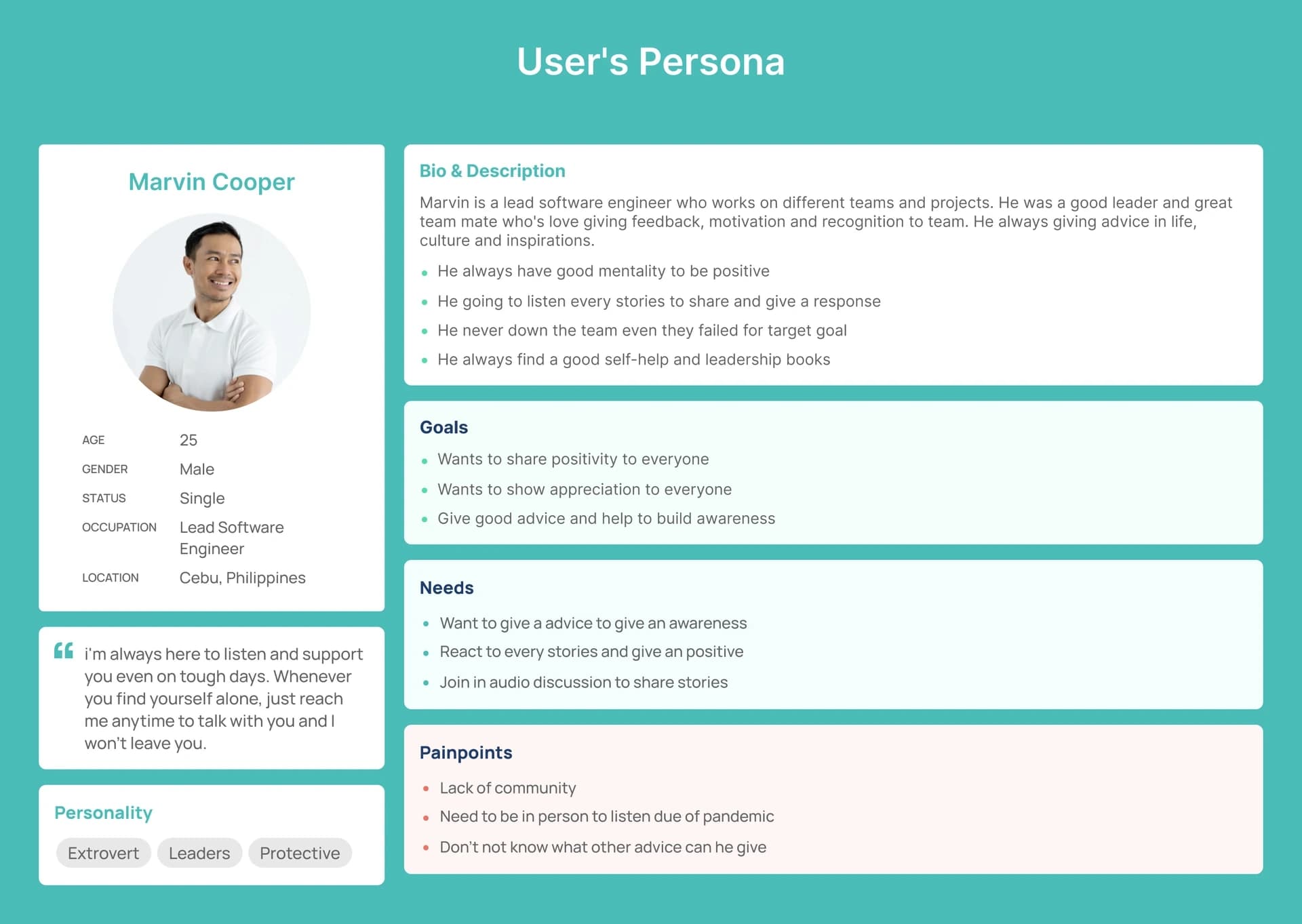
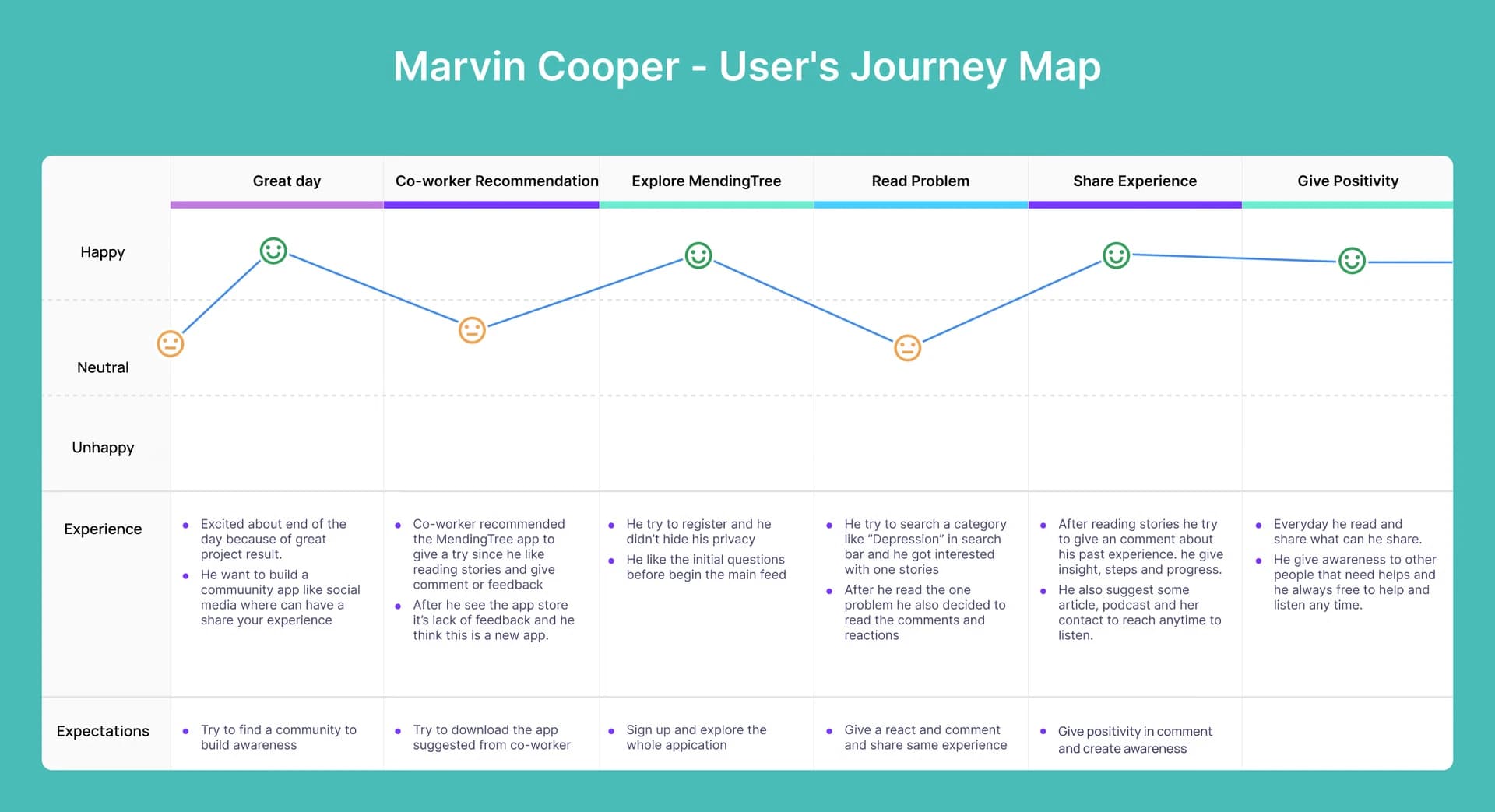
I created two personas to represent the two audience segments. Devon Lane is a 20-year-old creative writer in Manila who is stressed, wants to enjoy life more freely, and doesn’t know how to deal with overwhelming emotions. Marvin Cooper is a 25-year-old lead software engineer in Cebu who is always positive, loves giving advice and support, and wants to react to stories and join audio discussions.
💭 User journeys
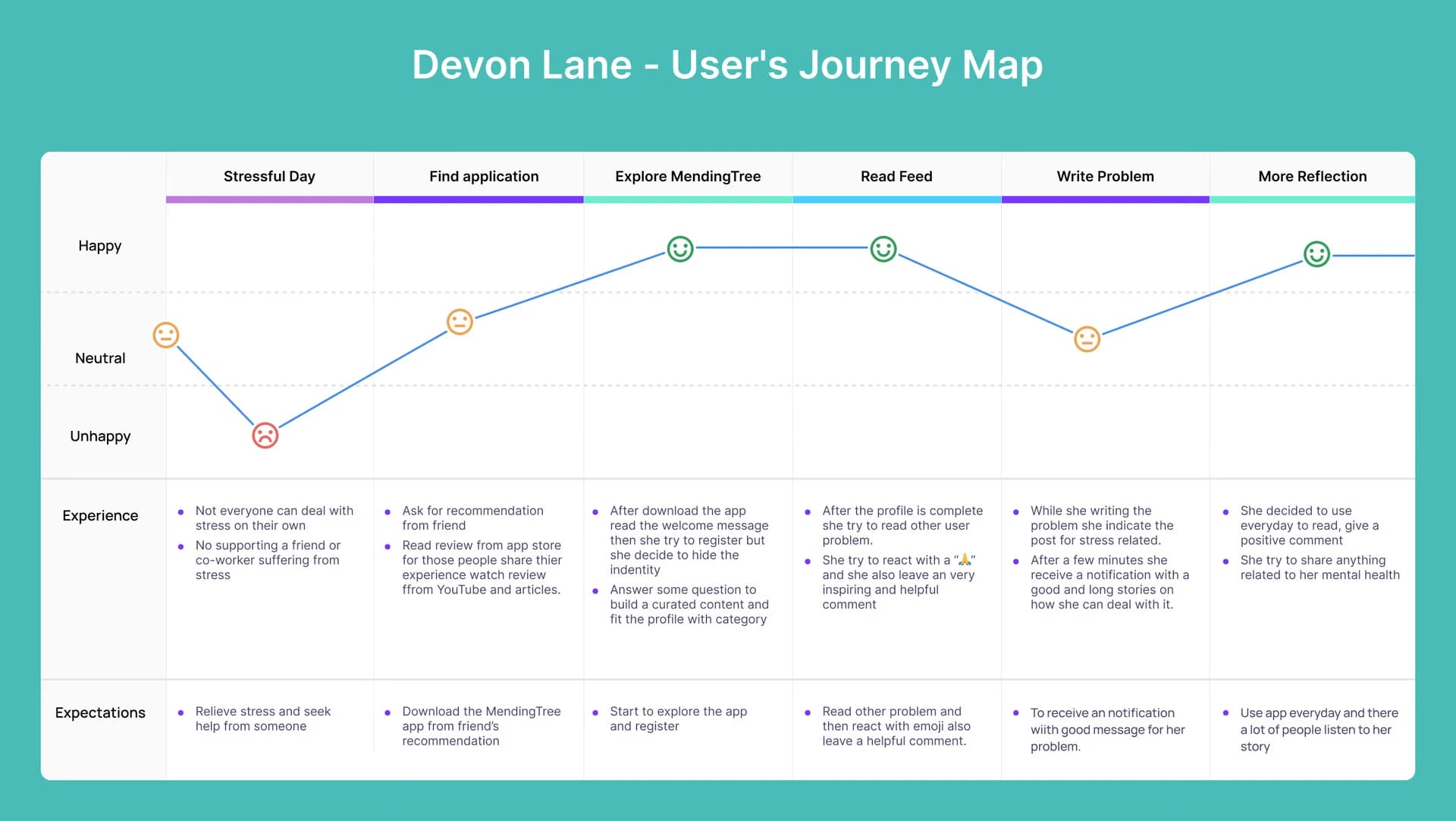
I mapped each persona’s journey through the platform, from the moment they hear about the app to the day they use it every day, with how they feel at each step and what they expect.
🤔 Problem
After the research I worked on the information architecture and wireframes. The CEO described the core challenge:
“There is too much stigma around mental health. Our goal is to reduce stigma by creating an environment that democratizes the voice of our users.”
The main design challenge was to bring a story feed together with community and user group feeds.
⚡️ Approach
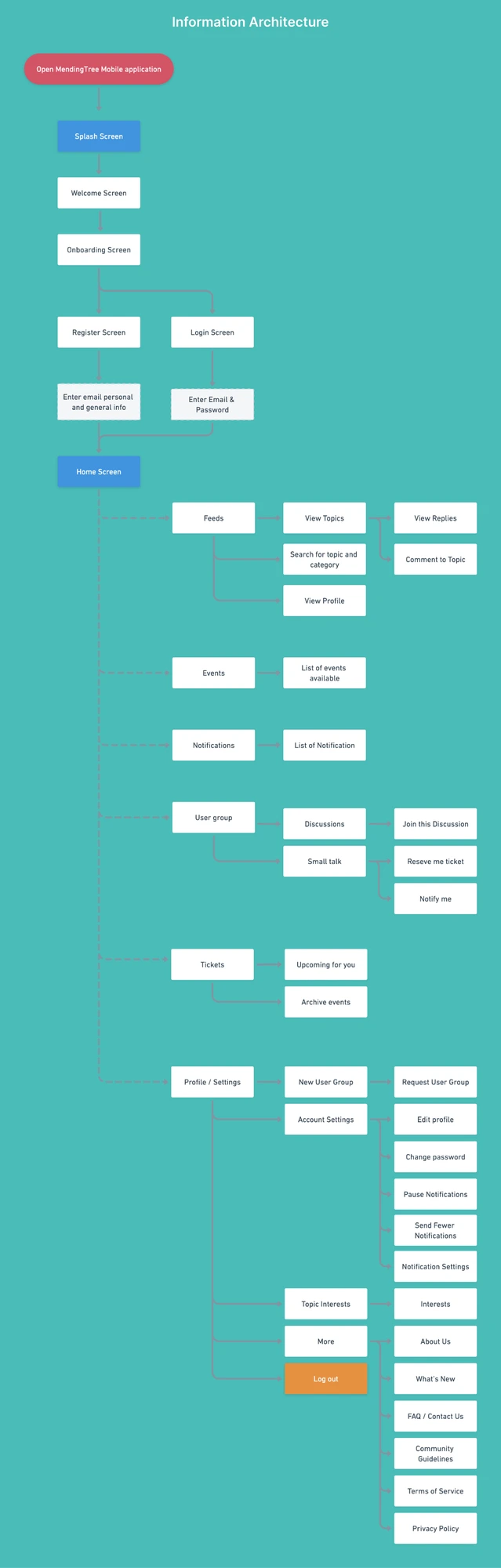
🔶 Information architecture
✍🏻 Wireframe sketches
My early sketches came from field notes. The budget meant we had to move into Figma quickly. The sketches carry feedback from the developers and the CEO, and because the sign-up flows were already developed, I had to adjust the information architecture to fit them.
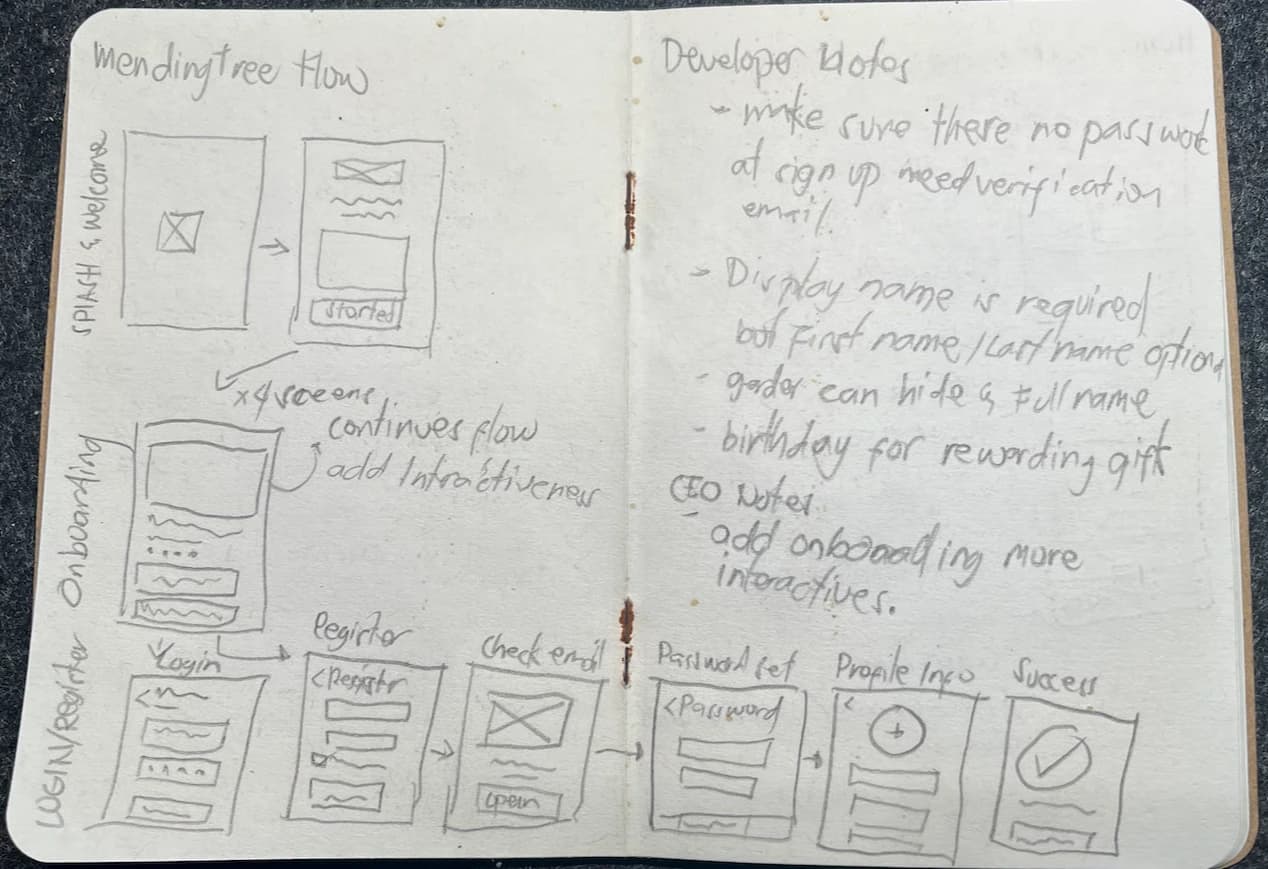
Notes from the developers and the CEO, where the sign-up flows were already built.
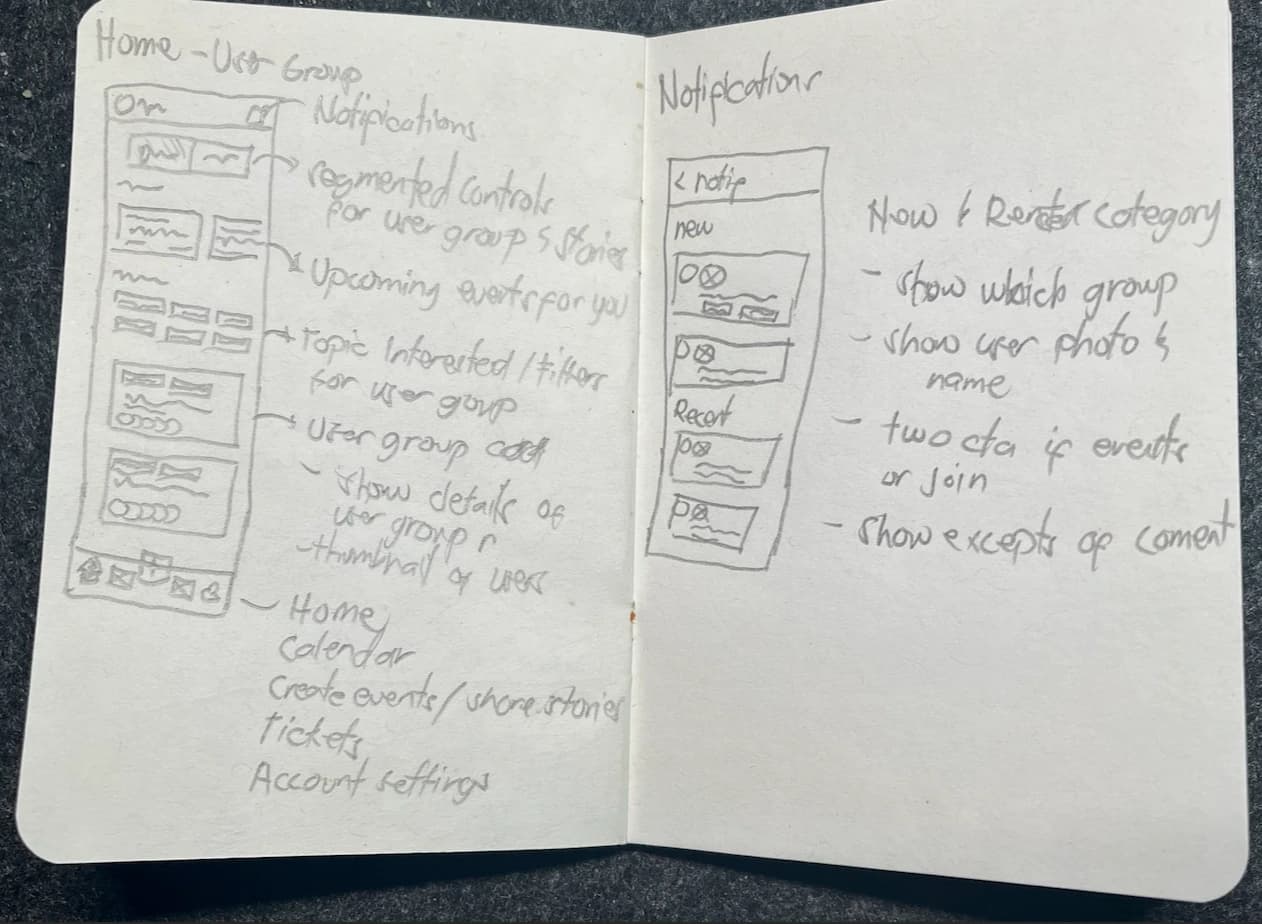
The home user group and notifications.
💖 Output
Splash, welcome and onboarding
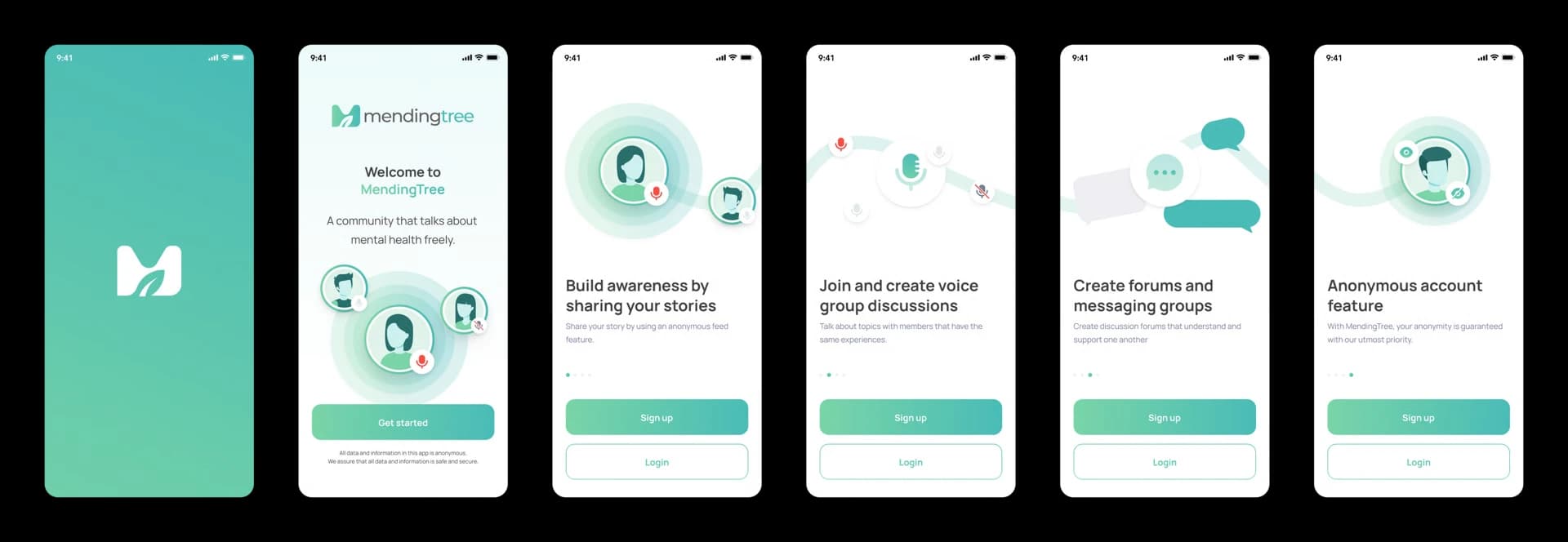
The app opens on a teal splash with the logo, then a welcome screen: “A community that talks about mental health freely.” A line under the Get started button promises that all data in the app is anonymous, safe and secure. Four onboarding slides follow, each with an illustration, a short title and a line of copy: build awareness by sharing your stories, join and create voice group discussions, create forums and messaging groups, and the anonymous account feature. Every slide keeps Sign up and Login within reach.
Login and register
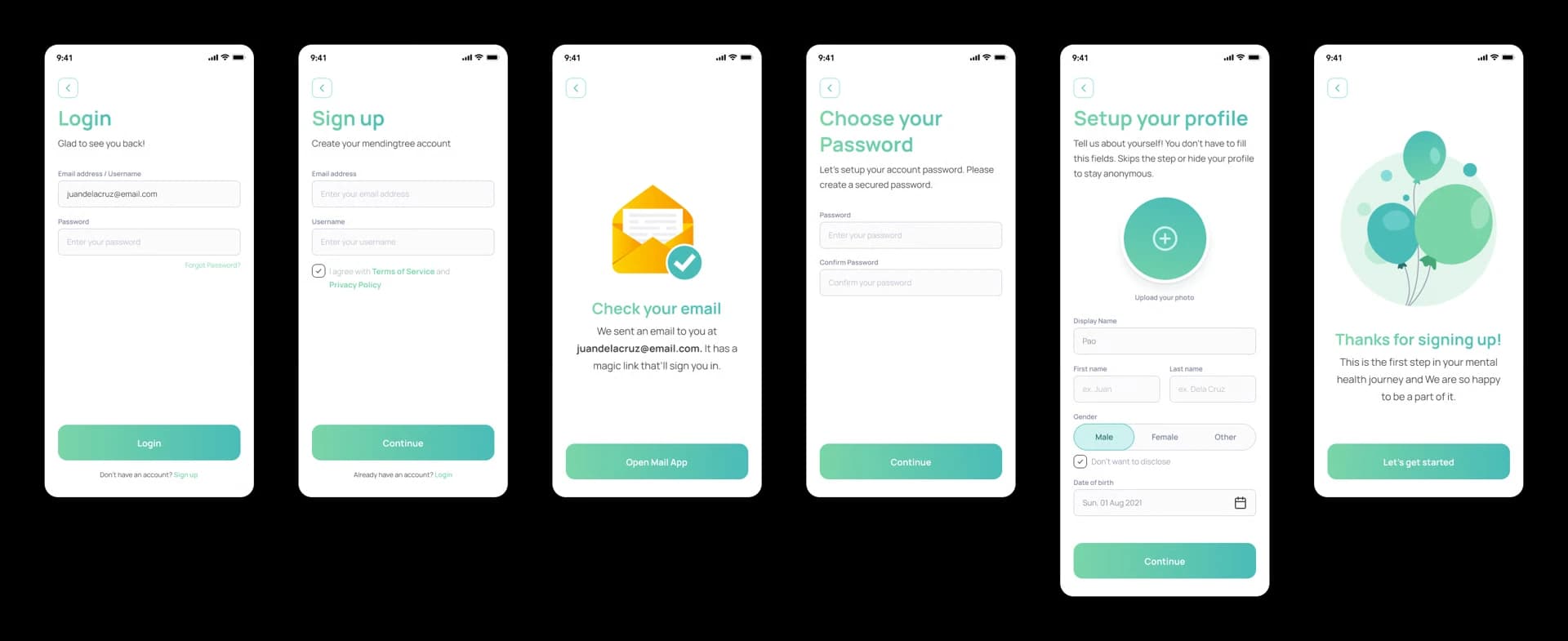
Login asks for an email or username and a password, with a forgot-password link and a link to sign up. Registering takes an email, a username and agreement to the terms. The next screen says “Check your email” and offers an Open Mail App button, because a magic link signs the person in. Then they choose a password, and set up a profile: a photo, a display name, optional first and last names, gender (with “Don’t want to disclose”) and date of birth. The text says they can skip the step or hide their profile to stay anonymous. A balloon screen, “Thanks for signing up!”, finishes the flow.
Home: user groups, stories, threads and comments with reactions
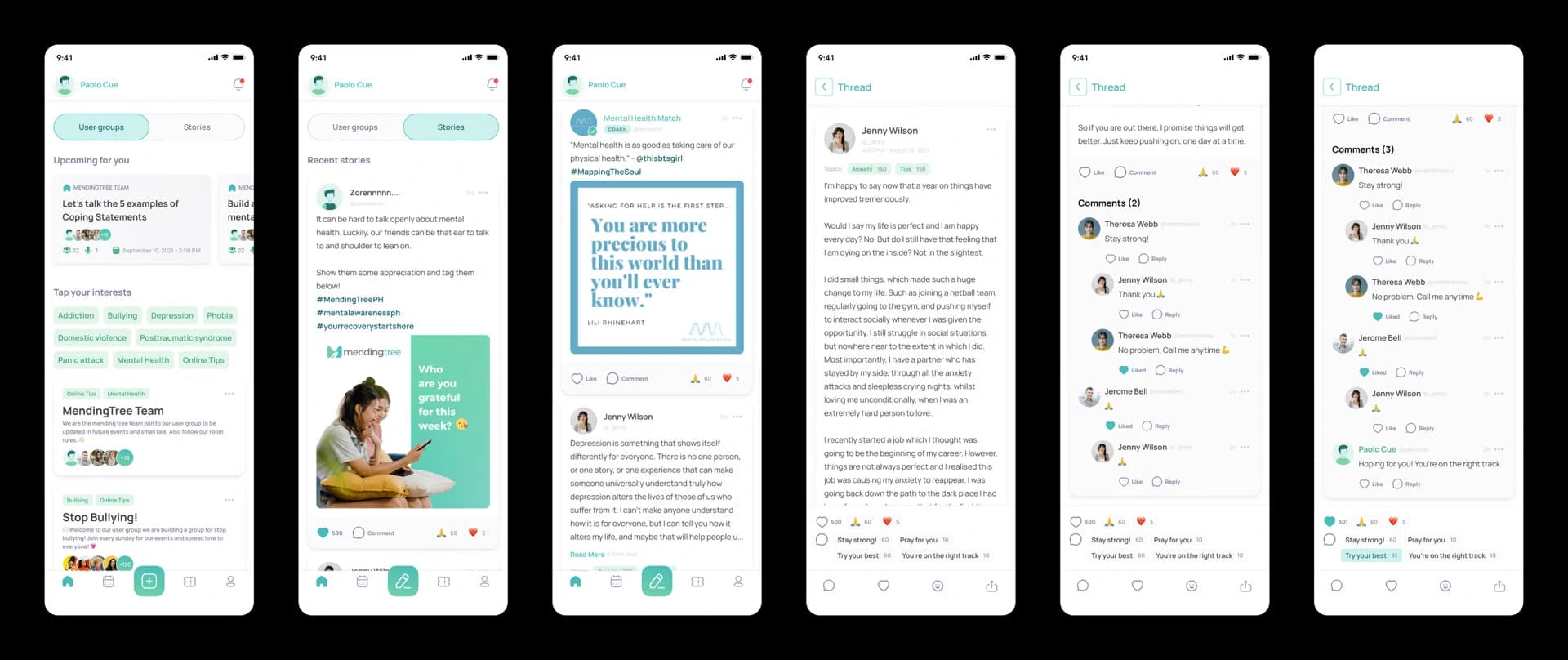
The home screen has a segmented control that switches between User groups and Stories. User groups shows the events coming up for you, a row of interest chips to tap (such as Addiction, Bullying, Depression and Phobia), and user group cards with their topics, a short description and member avatars. Stories shows recent stories as a feed: text posts with hashtags, a quote image, and Like and Comment actions with reaction counts. Opening one gives a thread with its comments, nested replies and likes, and a reaction bar fixed at the bottom.
Sharing stories, threads, comments and favourites, with emoji reactions and notifications
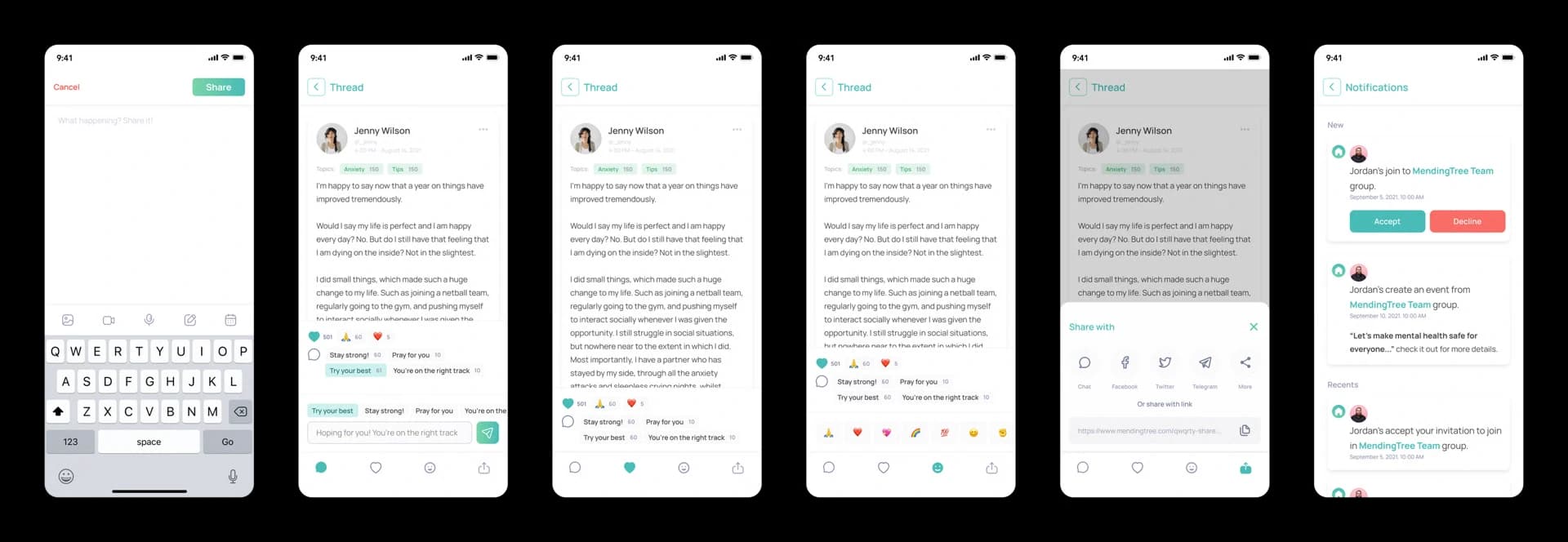
Sharing a story starts from a plain composer, “What happening? Share it!”, with Cancel and Share buttons and a toolbar for images, video, audio and more. On a thread, quick-reply suggestions such as “Stay strong!” and “Pray for you” sit above a comment field. The bottom bar switches between comment, favourite, emoji reaction and share. Reacting opens a tray of emoji, and sharing opens a sheet with Chat, Facebook, Twitter, Telegram and a link to copy. The notifications screen splits New from Recents, and shows requests with Accept and Decline buttons, such as someone asking to join a group.
Events, tickets and account settings
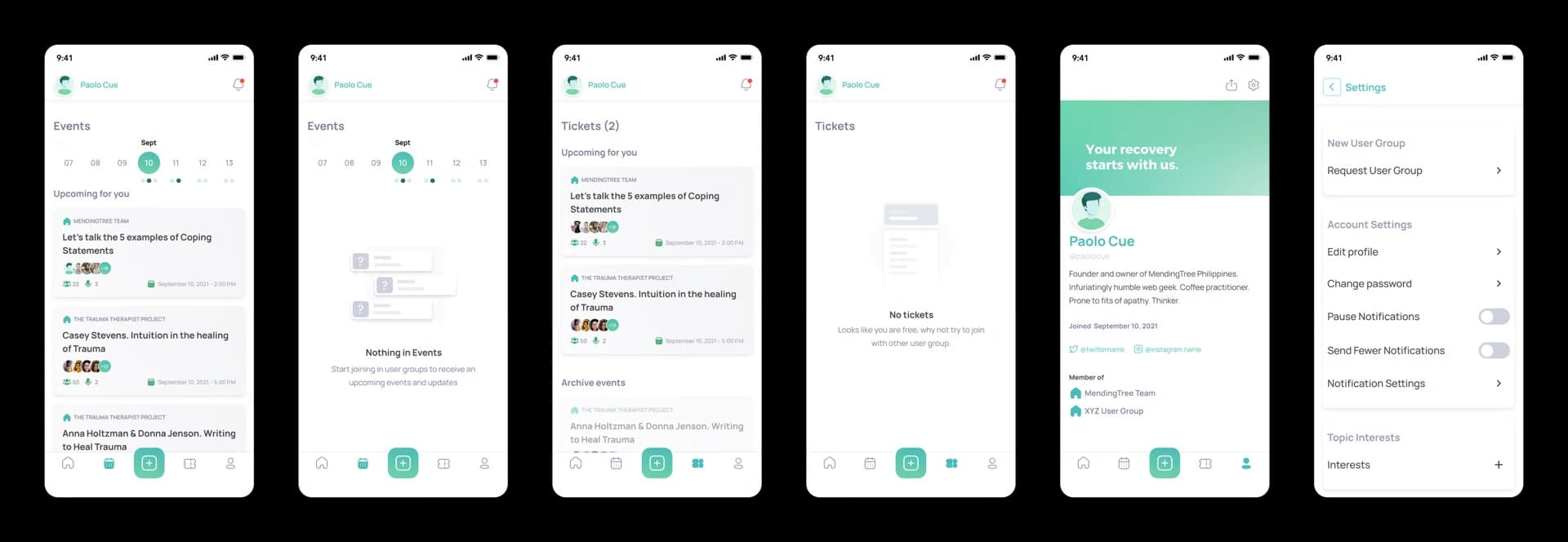
Events has a week strip with dots on the days that have something on, and cards for the upcoming small talks with the group name, the number of participants and speakers, and the date. Tickets lists upcoming tickets, with archived events below. Both have friendly empty states: “Nothing in Events” and “No tickets” invite the person to join a user group. The profile screen shows a cover, bio, join date, social handles and the groups they belong to, with a shortcut to settings.
Creating group discussions or small talks (open and closed)
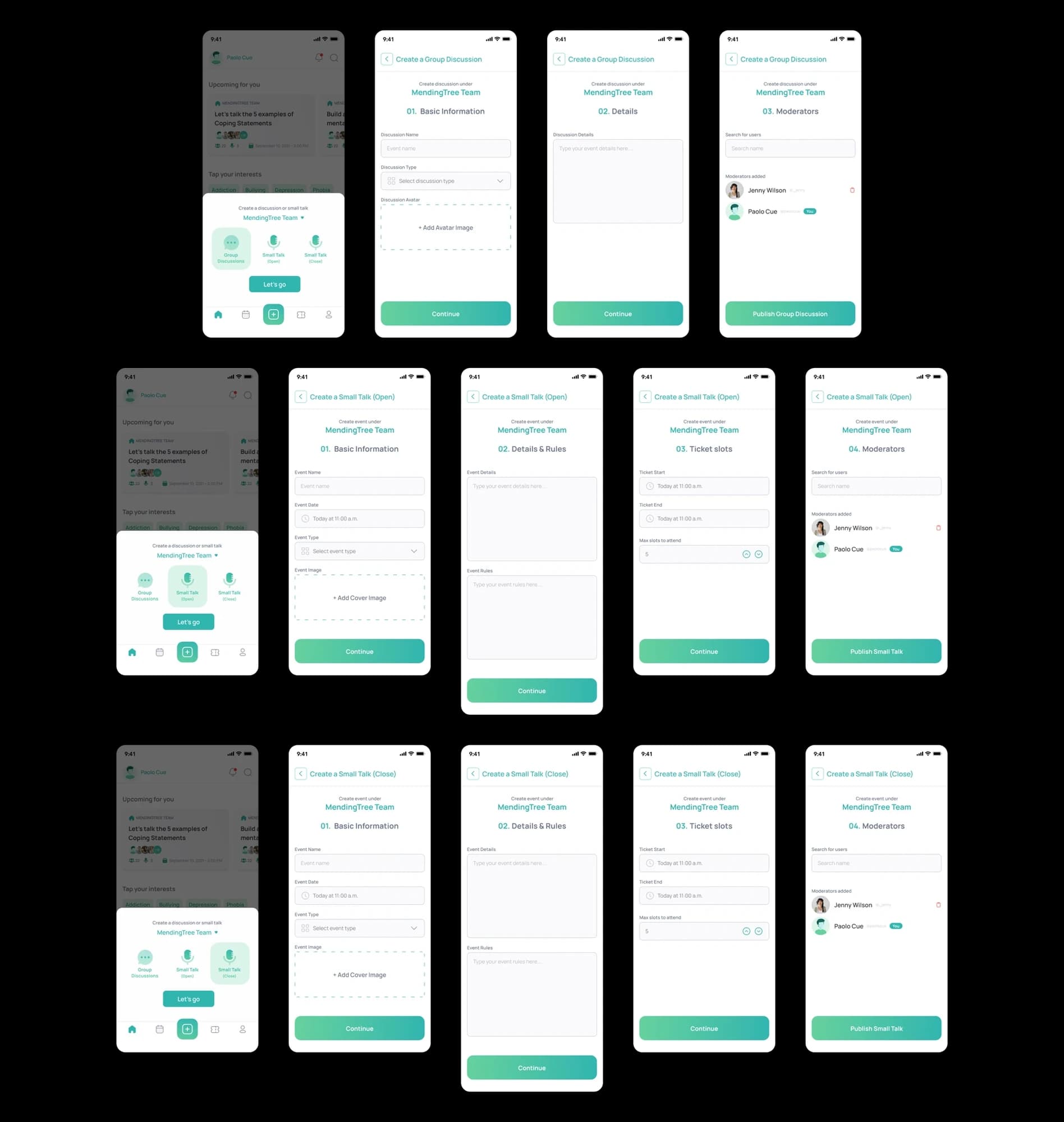
A plus button in the tab bar opens a sheet with three choices: Group Discussions, Small Talk (Open) and Small Talk (Close), under the group the person is creating for. A group discussion is made in three steps: basic information (name, type and an avatar image), details, and moderators, which you add by searching for users. A small talk adds a fourth step, ticket slots, with a start time, an end time and the maximum number of people who can attend, and its details step includes the event rules. The open and closed small talks follow the same steps.
User groups
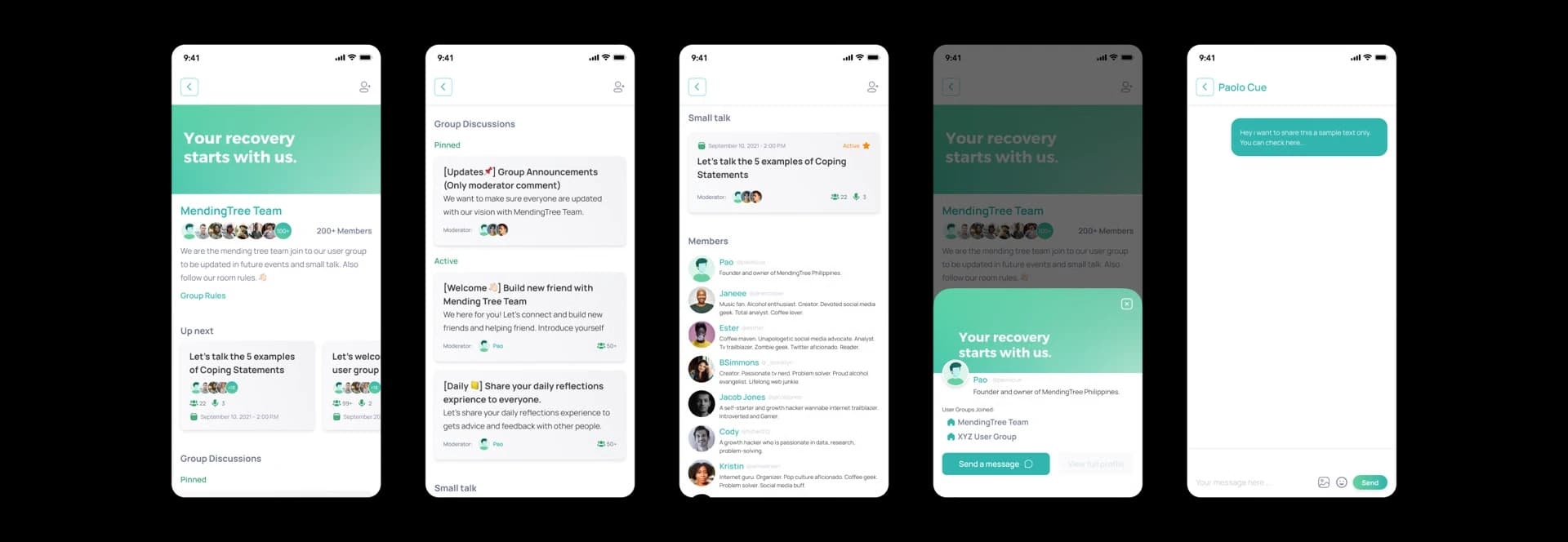
A user group page opens with a cover (“Your recovery starts with us.”), the group name, the member count and a link to the group rules. Below are the next small talks, then pinned and active group discussions, the small talks, and the members with a line of bio each. Tapping a member opens a card with their groups and a Send a message button, which leads to a direct message conversation.
Small talk as a moderator
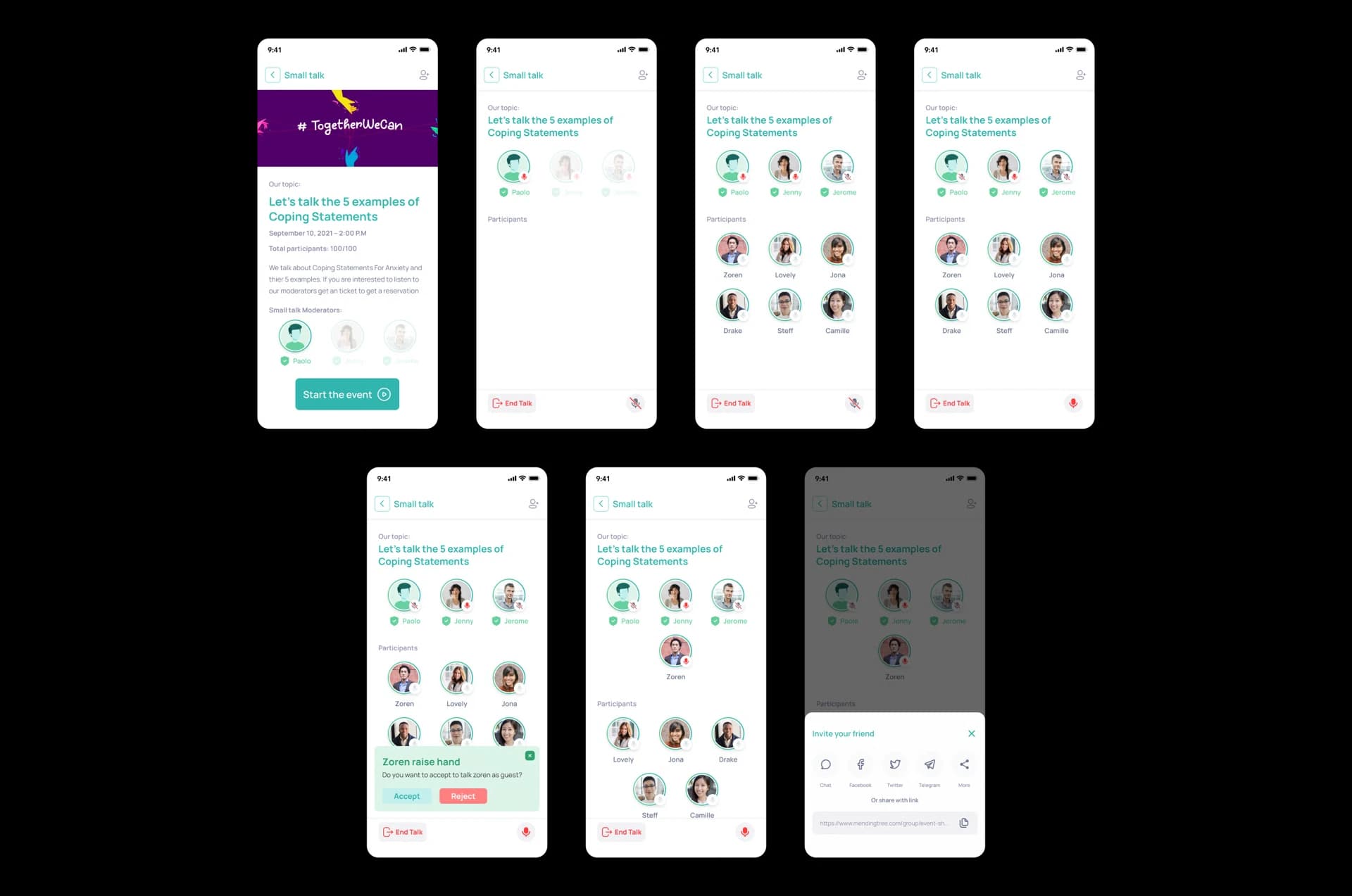
The event page shows the banner, the topic (“Let’s talk the 5 examples of Coping Statements”), the date, the number of participants out of the total, the description and the moderators, with a Start the event button. Once it’s live, moderators sit at the top with their microphone state, and participants are listed below. When someone raises their hand, a banner asks “Zoren raise hand: Do you want to accept to talk Zoren as guest?” with Accept and Reject. An accepted guest moves up beside the moderators, and an Invite your friend sheet shares the event by chat, social apps or a link.
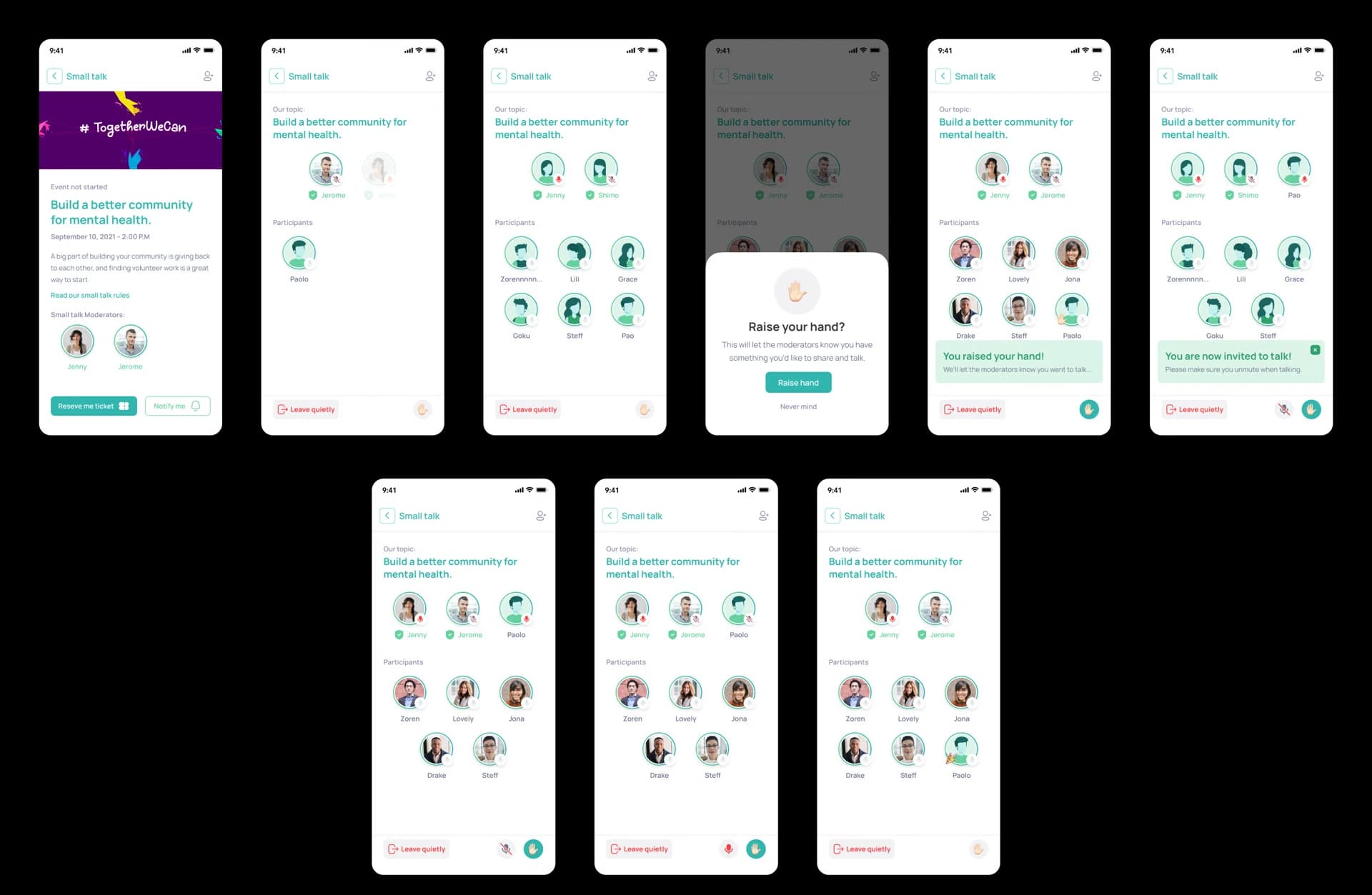
Small talk as a participant
Before the event, the page offers two buttons: Reserve me ticket and Notify me. Inside the room, a participant sees the moderators and the other listeners. A Raise hand button opens a sheet: “This will let the moderators know you have something you’d like to share and talk.” After raising their hand, a banner confirms “You raised your hand!”, and when a moderator accepts, “You are now invited to talk! Please make sure you unmute when talking.” The bottom bar has a mute control and the hand button, and Leave quietly lets someone go without interrupting.
Group discussion as moderator and participant
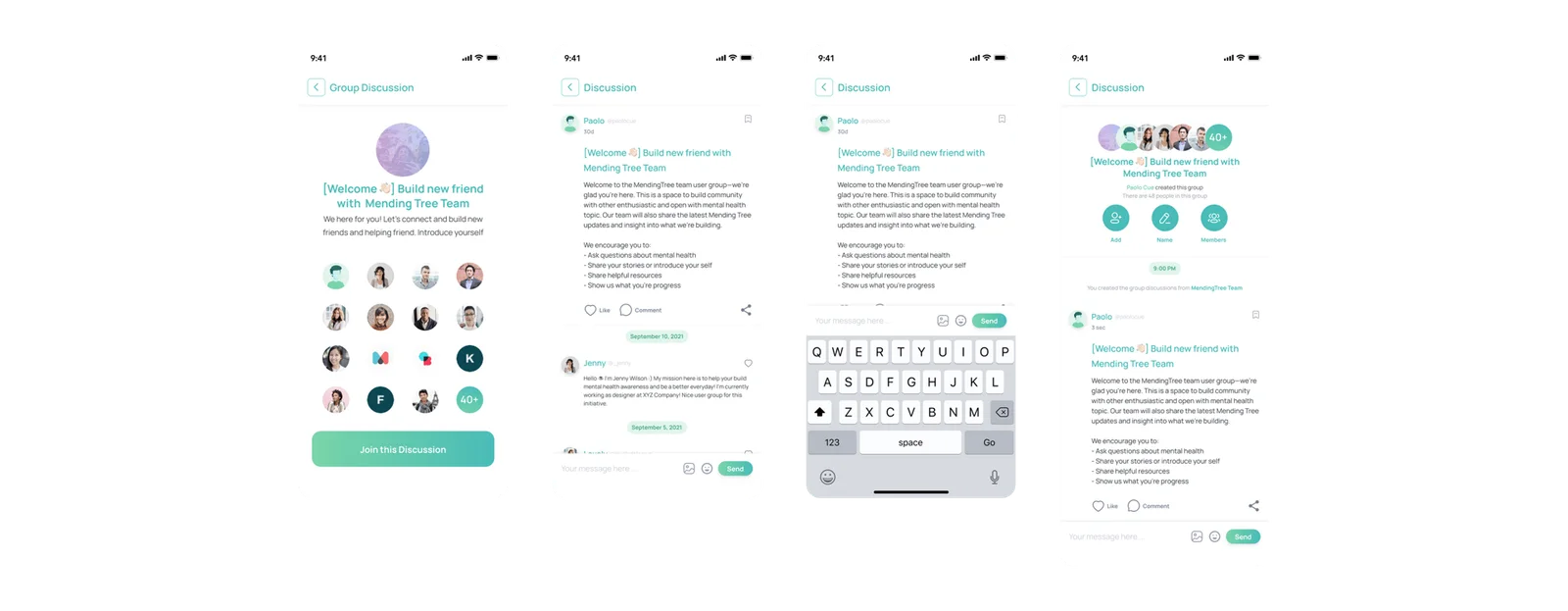
A group discussion starts with a landing page: the group image, the title, a short description, the members who joined, and a Join this Discussion button. Inside, the discussion reads like a chat. The moderator’s post comes first, then replies from members, with a message field and Send at the bottom and a note that the discussion was created from the group.
Settings and sub menu
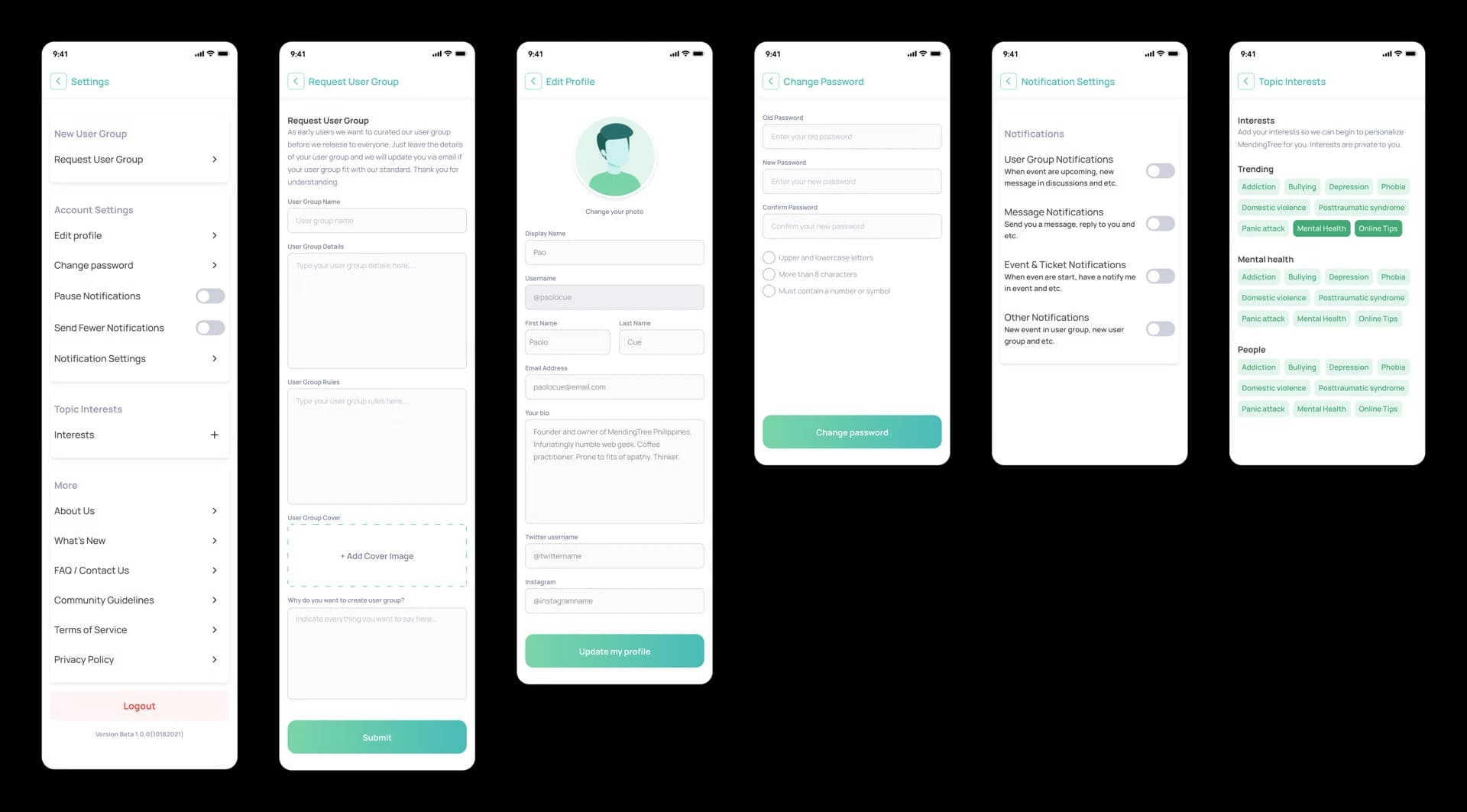
Settings is one list with sections: Request User Group, account settings (edit profile, change password, and toggles to pause notifications or send fewer), notification settings, topic interests, and a More section with About Us, What’s New, FAQ / Contact Us, community guidelines, the terms of service and the privacy policy, then Logout and the beta version number. The sub screens cover requesting a new user group (name, details, rules, a cover and why you want to create it), editing the profile, changing the password with a live checklist of its rules, four notification toggles, and choosing topic interests from Trending, Mental health and People.
✨ Lessons learned
This was an MVP designed for an investor presentation, and my work focused on research and UI design. There were real gaps: little formal usability testing, and a design that grew past what an MVP needs.
What can I do better?
- Project management. There was too much back and forth, and we were still not sure what the final features would be, because the client was undecided about the priorities. I needed more time for wireframes.
- User validation. I did mostly guerrilla testing, so we couldn’t validate the whole flow from one feature to another. I should have run usability testing with the main target users.
- Design complexity. Some screens were too complex for users, and I should have simplified as many as I could.
- Scope. The MVP solution was a mobile application, but it looked like an all-in-one app.